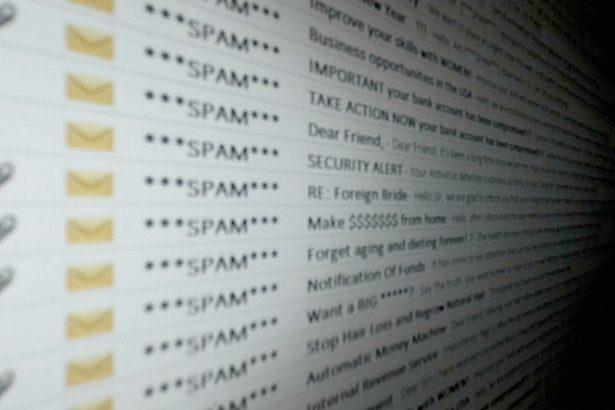
The Fraudulent Activity email scam is a phishing campaign designed to trick recipients into believing their accounts have been compromised. The message claims suspicious activity was detected and urges the recipient to click a link or contact a fake support channel. In reality, the Fraudulent Activity email scam is engineered to steal login credentials, financial information, or install malware.
This phishing threat primarily targets Windows, macOS, and mobile users because email attacks are platform-agnostic. Once the victim clicks the malicious link, the attacker may redirect them to a fake login portal or push a malware download disguised as a “security verification” step.
Because phishing attacks can lead to identity theft or malware infections, the Fraudulent Activity email scam should be treated as a serious cybersecurity threat. If you interacted with the email, it’s recommended to scan your device with a professional malware detection tool such as SpyHunter to ensure no malicious components were installed.
Fraudulent Activity Email Scam – Technical Threat Summary
| Category | Details |
|---|---|
| Threat Name | Fraudulent Activity Email Scam |
| Threat Type | Phishing / Email Scam |
| Associated Files | Malicious attachments, HTML phishing pages, potential malware downloaders |
| Symptoms | Suspicious emails, fake account alerts, phishing login pages, credential theft |
| Distribution Methods | Spam email campaigns, spoofed senders, malicious links |
| Detection Names | Phishing:Email/FraudAlert, Trojan.HTML.Phish, Scam:HTML/FraudActivity |
| Risk Level | High (credential theft, malware infection, identity fraud) |
| Recommended Removal Tool | SpyHunter – Advanced malware scanner |
How the Fraudulent Activity Email Scam Tricks Users
The Fraudulent Activity email scam relies on urgency and fear. Attackers craft messages that appear to come from banks, payment platforms, or major online services.
Typical email characteristics include:
- Subject lines such as “Fraudulent Activity Detected”, “Urgent Security Alert”, or “Account Suspension Notice”
- Fake warnings about suspicious login attempts
- Requests to verify identity immediately
- Links leading to phishing websites
These phishing pages mimic legitimate login portals. When victims enter their credentials, the information is sent directly to attackers.
Once stolen, these credentials may be used for:
- Account takeovers
- Financial theft
- Spam campaigns
- Additional phishing attacks
Infection Vectors Linked to the Fraudulent Activity Email Scam
Although the scam itself is primarily phishing, it can also serve as a delivery channel for malware infections.
Common infection vectors include:
1. Malicious Email Attachments
Attackers sometimes attach files disguised as:
- Security reports
- Transaction logs
- Fraud investigation documents
These attachments may contain malicious macros or embedded scripts that download malware when opened.
2. Fake Account Verification Links
Many messages redirect victims to phishing websites that imitate login portals.
These sites may deploy:
- Credential harvesting forms
- Fake CAPTCHA verification
- Malware download prompts
3. Fake Software Updates
Some phishing pages claim the user must install a security update to protect their account. The downloaded file may contain trojans or information stealers.
4. Malvertising and Redirect Chains
Clicking links may trigger multiple redirects, eventually landing on:
- phishing pages
- exploit kits
- malware download portals
What Happens After the Fraudulent Activity Email Scam Succeeds
Once attackers gain access or successfully deploy malware, several malicious actions may occur.
Credential Harvesting
The primary goal of the Fraudulent Activity email scam is stealing login credentials.
Targets often include:
- Email accounts
- Banking portals
- Cryptocurrency wallets
- Cloud storage platforms
Data Exfiltration
If malware is installed, it may collect sensitive data such as:
- saved browser passwords
- autofill payment details
- email contact lists
Command-and-Control (C2) Communication
Advanced malware dropped by phishing emails may connect to remote C2 servers, allowing attackers to:
- issue commands
- upload stolen data
- deploy additional malware payloads
Secondary Malware Deployment
In many cases, phishing campaigns eventually install:
- trojans
- spyware
- information stealers
- ransomware
Symptoms of the Fraudulent Activity Email Scam Infection
If your device was compromised after interacting with the Fraudulent Activity email scam, you may notice unusual system behavior.
Common symptoms include:
- Unexpected login alerts from online services
- Unknown devices accessing your accounts
- Suspicious browser redirects
- New programs installed without permission
- High CPU or network activity
- Disabled security software
- Unknown processes in Task Manager
If any of these signs appear, perform a full malware scan immediately.
Detection Names for Fraudulent Activity Email Scam Related Threats
Security vendors often classify phishing emails and related malware under different detection names.
Examples include:
- Microsoft Defender – Phish:HTML/FraudAlert
- Malwarebytes – Trojan.Phish.Agent
- Avast – HTML:Phishing-gen
- ESET NOD32 – HTML/FraudActivity.Phish
- Kaspersky – HEUR:Trojan-Downloader.Phish
Detection names vary depending on whether the security tool identifies the phishing email itself or malware delivered through it.
Persistence Mechanisms Used by Malware Delivered via Fraudulent Activity Email Scam
If the phishing campaign installs malware, it often establishes persistence on the system to avoid removal.
Typical persistence methods include:
Registry Modifications
Malware may create registry entries such as:
HKCU\Software\Microsoft\Windows\CurrentVersion\Run
HKLM\Software\Microsoft\Windows\CurrentVersion\Run
These keys ensure the malicious program launches during system startup.
Scheduled Tasks
Attackers frequently create hidden scheduled tasks that execute malware periodically.
Startup Folder Entries
Some malware copies executables into the Windows Startup folder so they launch automatically when the user logs in.
Dropped Executables
Payloads may appear in directories like:
C:\Users\[username]\AppData\Roaming\
C:\ProgramData\
C:\Temp\
These files often use random names to evade detection.
Manual Removal Guide for Fraudulent Activity Email Scam Related Malware
⚠ Manual malware removal can be risky. Incorrect steps may damage system files or leave hidden components behind. Advanced threats often reinstall themselves if not completely removed.
For a safer and faster cleanup, security professionals recommend scanning with SpyHunter, which can detect hidden files, malicious registry entries, and startup persistence.
Still, if you prefer manual removal, follow the steps below carefully.
Step 1 – Boot Windows Into Safe Mode
- Press Win + R
- Type
msconfig - Open the Boot tab
- Enable Safe Boot
- Restart your PC
Safe Mode prevents most malware processes from running.
Step 2 – End Suspicious Processes
- Press Ctrl + Shift + Esc
- Open Task Manager
- Look for unknown processes
- Right-click suspicious entries and select End Task
Research unfamiliar processes before terminating them.
Step 3 – Remove Suspicious Programs
- Open Control Panel
- Go to Programs and Features
- Look for recently installed applications you don’t recognize
- Uninstall suspicious entries
Step 4 – Check Startup Entries
Press Ctrl + Shift + Esc, then:
- Open the Startup tab
- Disable unknown startup items
Step 5 – Inspect Registry Keys
Open Registry Editor (regedit) and review:
HKCU\Software\Microsoft\Windows\CurrentVersion\Run
HKLM\Software\Microsoft\Windows\CurrentVersion\Run
Delete suspicious entries referencing unknown executables.
⚠ Be cautious when editing the registry.
Step 6 – Inspect the Hosts File
Open:
C:\Windows\System32\drivers\etc\hosts
Remove suspicious IP redirects that may redirect legitimate websites.
Step 7 – Perform a Full Malware Scan
Even after manual cleanup, hidden components may remain.
Run a complete system scan with SpyHunter, which can:
- detect deeply embedded threats
- remove registry persistence
- eliminate malicious files automatically
Download here.
How to Prevent Fraudulent Activity Email Scam Attacks
Phishing scams continue evolving, but following security best practices significantly reduces your risk.
Keep Software Updated
Always install security updates for:
- operating systems
- browsers
- email clients
Avoid Suspicious Email Links
Never click links in emails claiming urgent security issues unless you verify the sender.
Enable Real-Time Protection
Use reputable security tools that monitor incoming emails and downloads.
Avoid Pirated Software
Cracked applications often contain hidden malware installers.
Use Email Filtering
Modern email security filters can block phishing attempts before they reach your inbox.
Maintain Regular Backups
Backups help protect your data if malware infections occur.
Conclusion – The Fraudulent Activity Email Scam Is a Credential Theft Trap
The Fraudulent Activity email scam is a classic phishing campaign built around urgency and fear. By claiming suspicious activity on your account, attackers attempt to trick victims into revealing sensitive credentials or downloading malware.
While the scam itself may seem simple, the consequences can be severe:
- account hijacking
- financial fraud
- malware infections
- identity theft
If you clicked links or opened attachments from the Fraudulent Activity email scam, immediately change your passwords and run a full security scan.
Professional malware detection tools such as SpyHunter can help ensure that no malicious files or persistence mechanisms remain on your system.
Staying cautious with unexpected security alerts is the best defense against phishing threats.