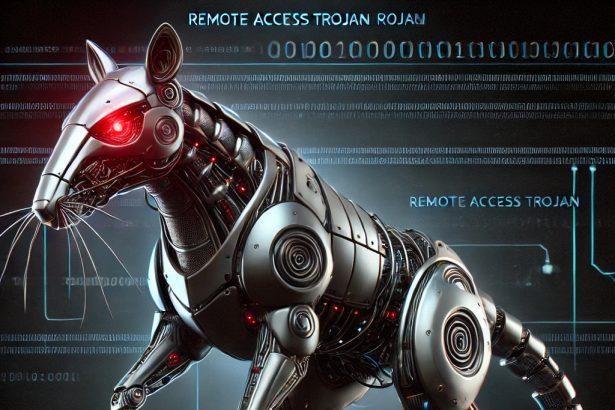
InterLockRAT is a newly identified Remote Access Trojan (RAT) weaponized by the Interlock ransomware group. This threat uses deceptive techniques to trick users into executing malicious code, allowing attackers to maintain persistent and covert access to compromised systems. Unlike traditional JavaScript or Node.js-based threats, InterLockRAT is unique in its use of PHP for system-level access, making it more evasive and harder to detect.
Overview of Threat Type
- Threat type: Remote Access Trojan (RAT)
- Delivery method: Sophisticated social engineering involving fake CAPTCHA pages and user-pasted PowerShell commands. Users are tricked into running commands that download and launch RAT payloads directly.
Summary
| Attribute | Details |
|---|---|
| Threat type | Remote Access Trojan (PHP & Node.js variants) |
| Detection names | InterLock RAT, NodeSnake RAT |
| Symptoms of infection | Unexpected File Explorer behavior, new php.exe or node.exe processes, persistence entries in Registry |
| Damage | Full system profiling, data exfiltration, credential theft, remote command execution, lateral movement |
| Distribution methods | Social engineering via FileFix method, malicious traffic redirection, compromised legitimate websites |
| Danger level | High — often part of ransomware deployment strategies and data extortion schemes |
| Removal tool | SpyHunter – Download here |
Detailed Threat Evaluation
How You Got Infected
The infection process starts when a user lands on a compromised or maliciously injected website. The page displays a fake CAPTCHA or verification screen, instructing the user to open File Explorer and paste a seemingly harmless command from the clipboard. In reality, this command triggers a PowerShell script that silently downloads the InterLockRAT payload, either in PHP or Node.js form.
The malware is typically placed in hidden directories such as %AppData%\Roaming\php\php.exe or %AppData%\Roaming\node\node.exe, then configured to persist on system reboot by modifying Windows registry keys.
What InterLockRAT Does
Once active, InterLockRAT performs detailed system reconnaissance, collecting data like system specs, running processes, network configuration, privilege level, and connected drives. It then sends this data to remote command-and-control servers via encrypted tunnels, often leveraging platforms like Cloudflare.
The RAT can load additional malicious modules such as keyloggers, screen grabbers, credential stealers, and tools to facilitate lateral movement across the network via RDP. It also serves as a preparatory stage for full-scale ransomware deployment, often leading to data encryption and extortion.
A variant of this RAT, known as NodeSnake, includes extra features like service creation, DLL injection, and advanced anti-analysis capabilities.
Should You Be Worried?
Absolutely. InterLockRAT is not a standalone annoyance—it is part of a comprehensive attack pipeline that ends in financial and data loss. Its stealth, modularity, and integration into ransomware campaigns make it one of the more dangerous threats in circulation. If your machine has shown signs of strange behavior or has been redirected to suspicious verification screens, immediate scanning is critical.
Manual Trojan Malware Removal Guide
Step 1: Boot into Safe Mode
- Restart your computer.
- Before Windows starts, press the F8 key (or Shift + F8 on some systems).
- Select Safe Mode with Networking from the Advanced Boot Options menu.
- Press Enter to boot.
This prevents the Trojan from running and makes it easier to remove.
Step 2: Identify and Stop Malicious Processes
- Press Ctrl + Shift + Esc to open Task Manager.
- Go to the Processes tab (or Details in Windows 10/11).
- Look for suspicious processes using high CPU or memory, or with unfamiliar names.
- Right-click on the suspicious process and select Open File Location.
- If the file is in a temporary or system folder and looks unfamiliar, it is likely malicious.
- Right-click the process and choose End Task.
- Delete the associated file in File Explorer.
Step 3: Remove Trojan-Related Files and Folders
- Press Win + R, type %temp%, and press Enter.
- Delete all files in the Temp folder.
- Also check these directories for unfamiliar or recently created files:
- C:\Users\YourUser\AppData\Local\Temp
- C:\Windows\Temp
- C:\Program Files (x86)
- C:\ProgramData
- C:\Users\YourUser\AppData\Roaming
- Delete suspicious files or folders.
Step 4: Clean Trojan Malware from Registry
- Press Win + R, type regedit, and press Enter.
- Navigate to the following paths:
HKEY_LOCAL_MACHINE\SOFTWARE\Microsoft\Windows\CurrentVersion\RunHKEY_CURRENT_USER\SOFTWARE\Microsoft\Windows\CurrentVersion\Run
- Look for entries launching files from suspicious locations.
- Right-click and delete any entries you don’t recognize.
Warning: Editing the registry can harm your system if done improperly. Proceed with caution.
Step 5: Reset Browser Settings
Google Chrome
- Go to Settings > Reset Settings.
- Click Restore settings to their original defaults and confirm.
Mozilla Firefox
- Go to Help > More Troubleshooting Information.
- Click Refresh Firefox.
Microsoft Edge
- Go to Settings > Reset settings.
- Click Restore settings to their default values.
Step 6: Run a Full Windows Defender Scan
- Open Windows Security via Settings > Update & Security.
- Click Virus & threat protection.
- Choose Scan options, select Full scan, and click Scan now.
Step 7: Update Windows and Installed Software
- Press Win + I, go to Update & Security > Windows Update.
- Click Check for updates and install all available updates.
Automatic Trojan Removal Using SpyHunter
If manually removing the Trojan seems difficult or time-consuming, using SpyHunter is the recommended method. SpyHunter is an advanced anti-malware tool that detects and eliminates Trojan infections effectively.
Step 1: Download SpyHunter
Use the following official link to download SpyHunter: Download SpyHunter
For full instructions on how to install, follow this page: Official SpyHunter Download Instructions
Step 2: Install SpyHunter
- Locate the SpyHunter-Installer.exe file in your Downloads folder.
- Double-click the installer to begin setup.
- Follow the on-screen prompts to complete the installation.
Step 3: Scan Your System
- Open SpyHunter.
- Click Start Scan Now.
- Let the program detect all threats, including Trojan components.
Step 4: Remove Detected Malware
- After the scan, click Fix Threats.
- SpyHunter will automatically quarantine and remove all identified malicious components.
Step 5: Restart Your Computer
Restart your system to ensure all changes take effect and the threat is completely removed.
Tips to Prevent Future Trojan Infections
- Avoid downloading pirated software or opening unknown email attachments.
- Only visit trusted websites and avoid clicking on suspicious ads or pop-ups.
- Use a real-time antivirus solution like SpyHunter for ongoing protection.
- Keep your operating system, browsers, and software up to date.
Conclusion
InterLockRAT exemplifies the evolution of RATs into advanced, modular, and persistent threats used by ransomware gangs. By manipulating users into self-infecting their systems through deceptive FileFix tactics, the Interlock group demonstrates a dangerous shift in attack methodology. Detecting and removing this RAT early can prevent catastrophic data breaches and extortion events. Use SpyHunter for reliable detection and removal to keep your system safe.